In the column “Documents & Dates”, you can create and save different documents yourself. This has the advantage that you can directly tie the necessary documents to your contact, and thus obtain an overview of all communication with the customer.
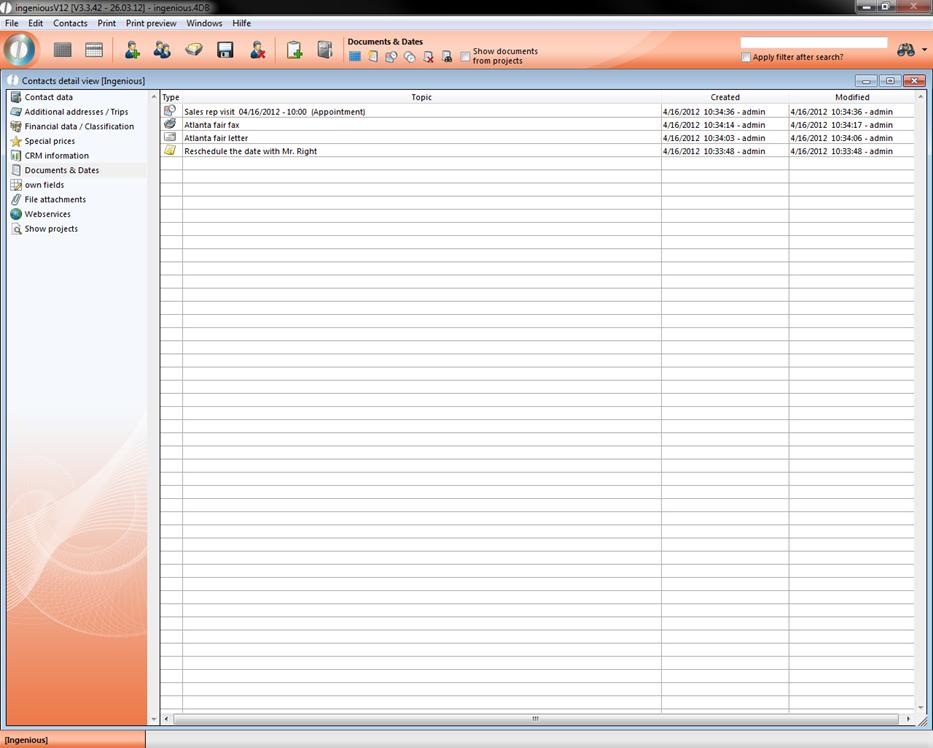
 Notes
Notes
 Letter
 Fax
Fax
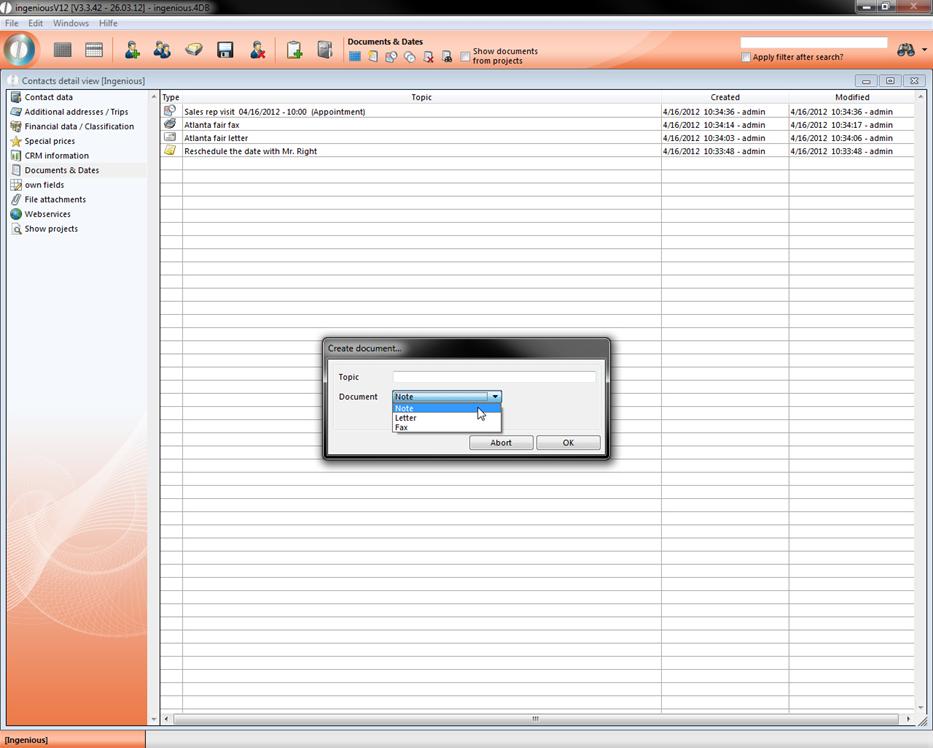
In order to create a note or a document, please click on the  icon “Insert Document”. A dialog window will open in which you can designate the desired document structure.
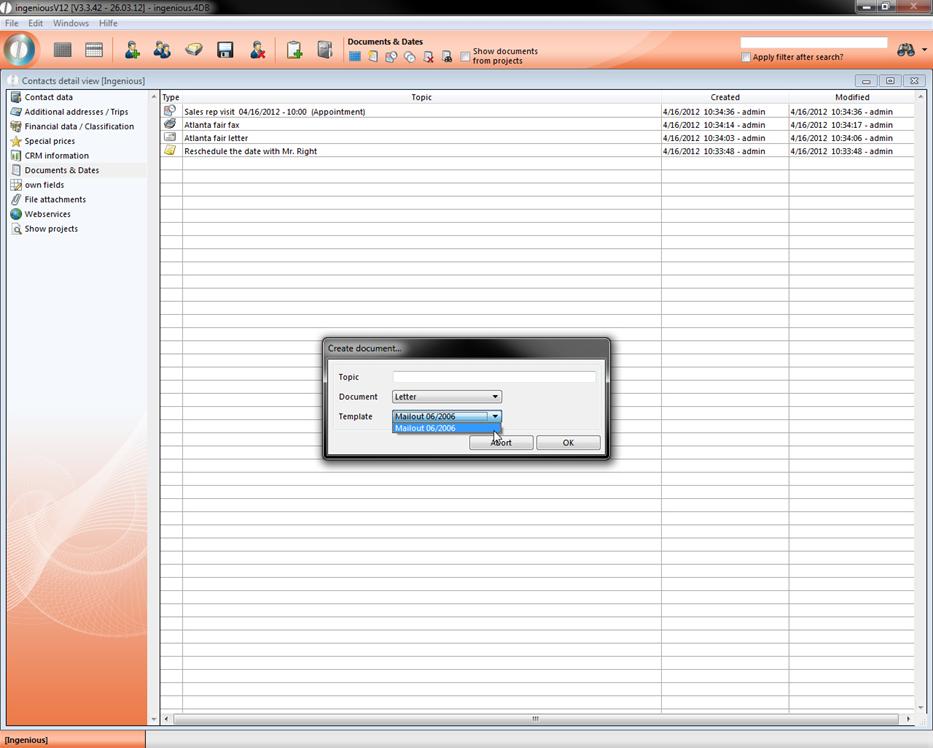
If you want to provide a letter or a fax, the field “Template”, from which you can select different prewritten letters or fax templates, is available to you. You will find these templates in the menu “Data/Template administration”. You can create your own templates there that are then also cited in the “Templates” field.
Depending on the selected document option, a note Modification window or a text-Modification window opens in which you can create your desired document.
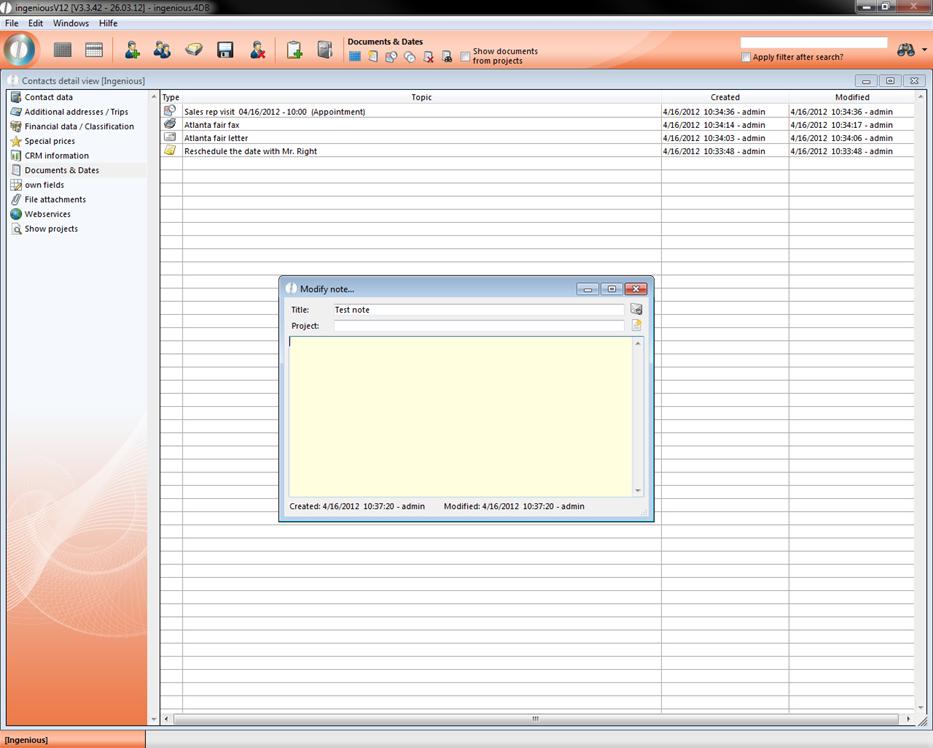
Note management window
When closing the document, you select the option “Accept” in the window that appears. Your new document is now indicated in the view and can be revised (open by double-clicking) or deleted by you at anytime (Mark object and click on  ).
).
Field activities
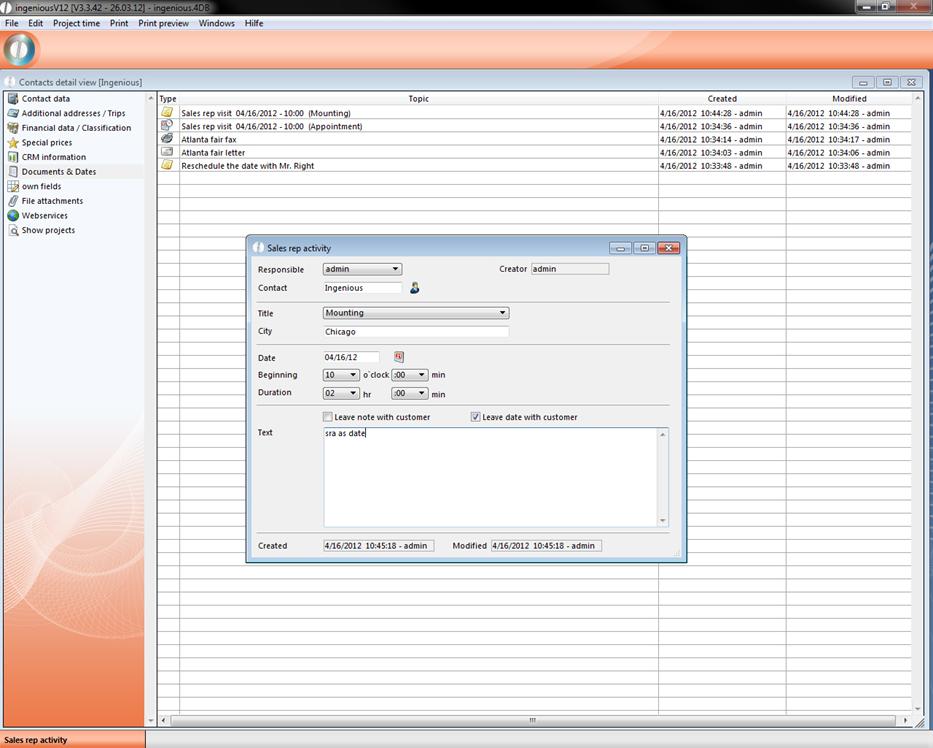
With the  button, field service dates can be directly made and managed in the contact. This saves time for the user and provides a better overview. The window “Field Activity” opens where the responsible editor can specify the time and duration of the activity. In the “Title” field, different options (installation, repair, presentation and discussion) are provided in order to assign the field service activity.
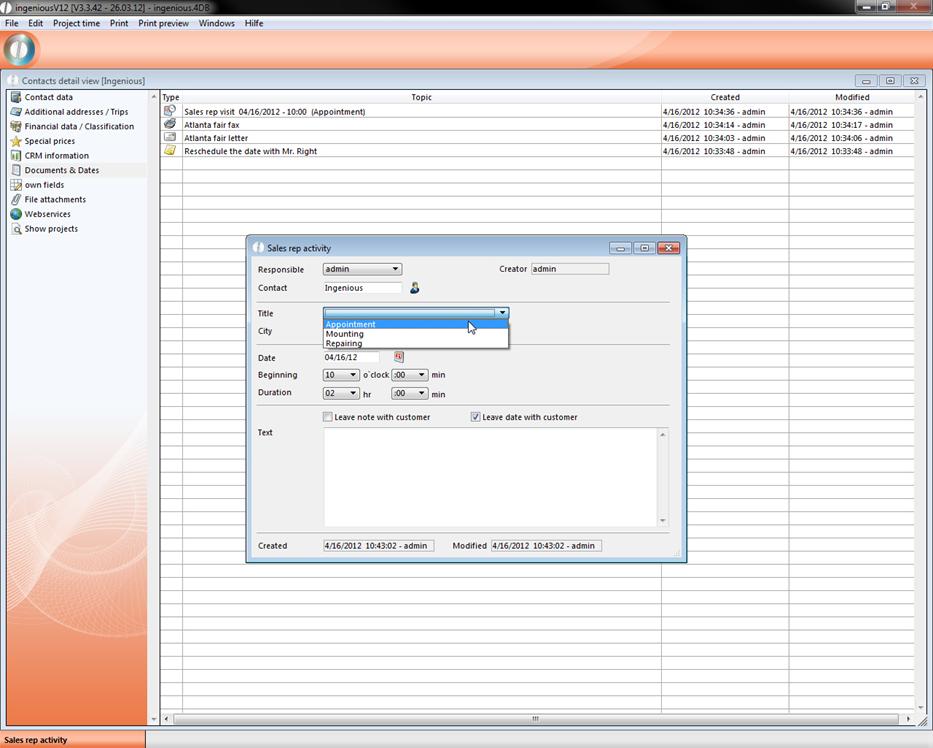
Practice “Planning field service activities”
1. With the icon, you can create a field service activity for the contact “Olsen” and you can fill in the fields in as shown in the following image.
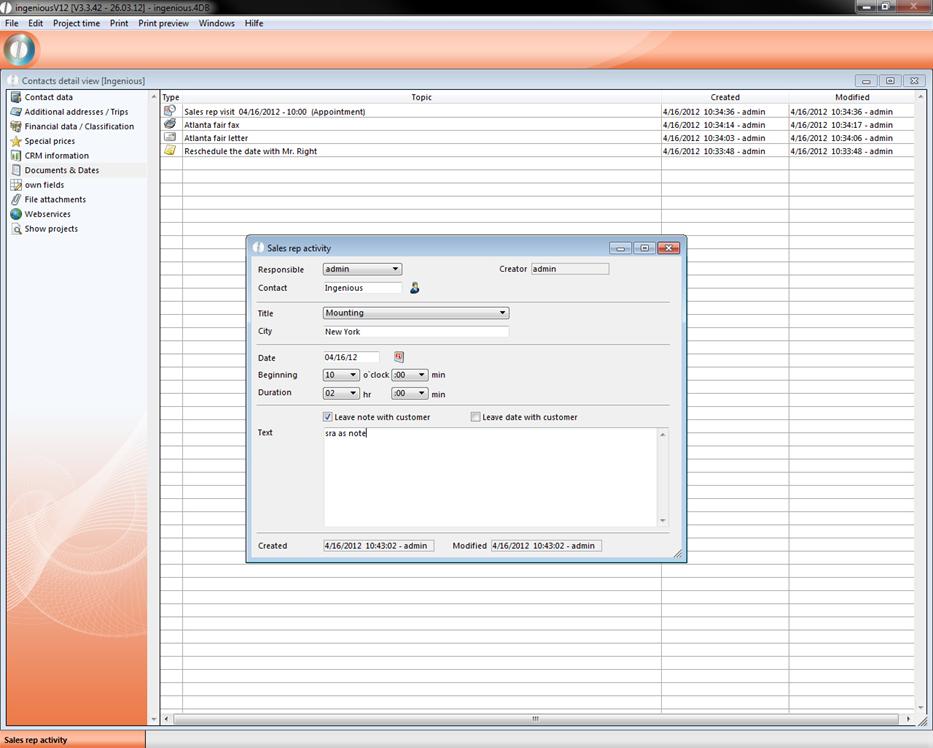
2. Please enter a checkmark in the field “As a note when archiving the contact”. Now the data of the AD dates are stored as a note and further revisions of the data in the contact view are not possible. Close the entry with the  icon, and click in the window that appears on “OK”. Please add a checkmark.
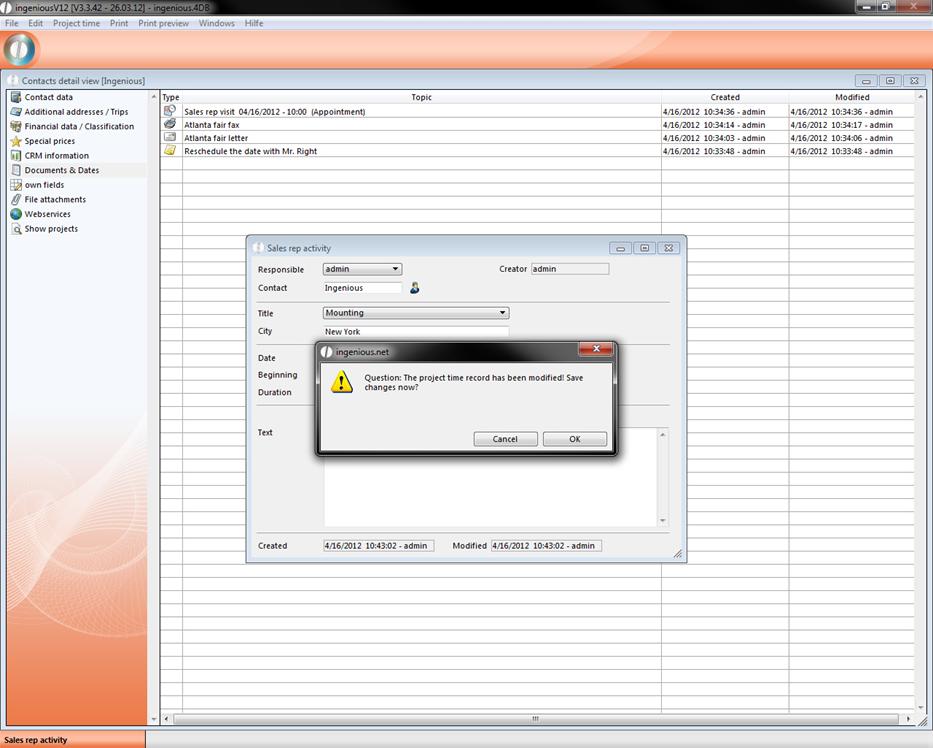
In the contact detail view the field service activity is indicated as a note.
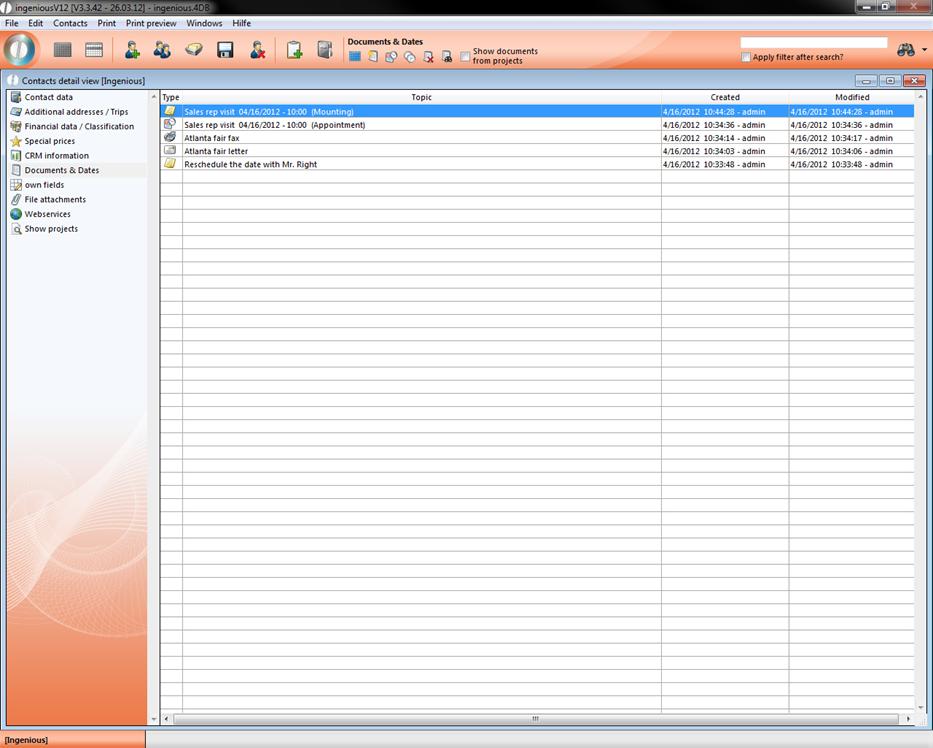
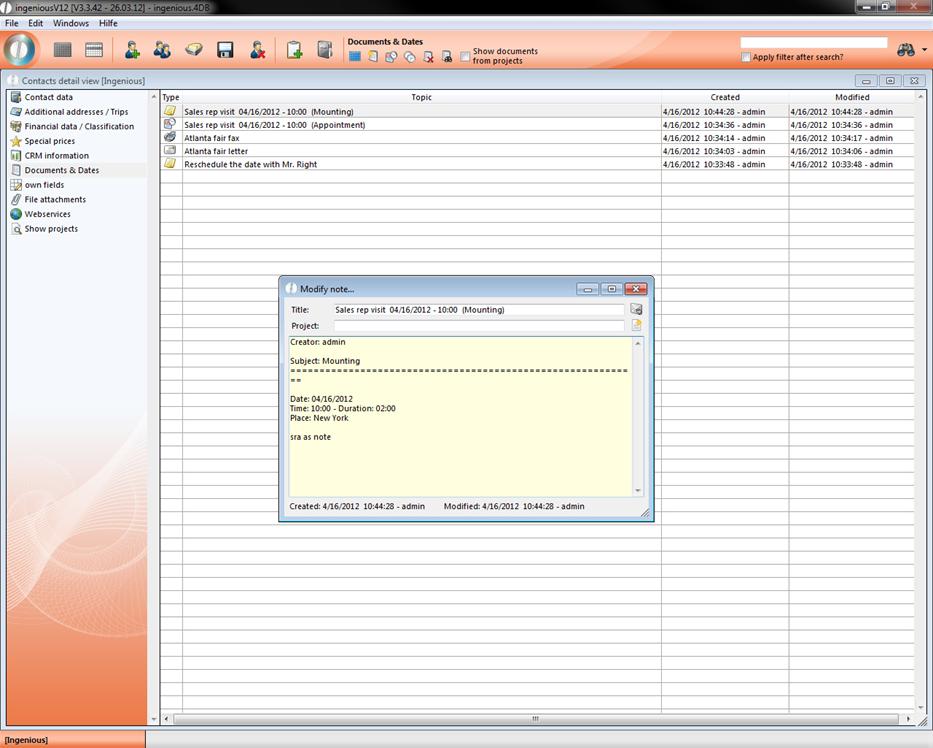
3. If you open the date by double-clicking, a note window will open and cannot be further revised.
4. Create a new AD date. This time the checkmark will be placed in the field, “Leave date with contact”.
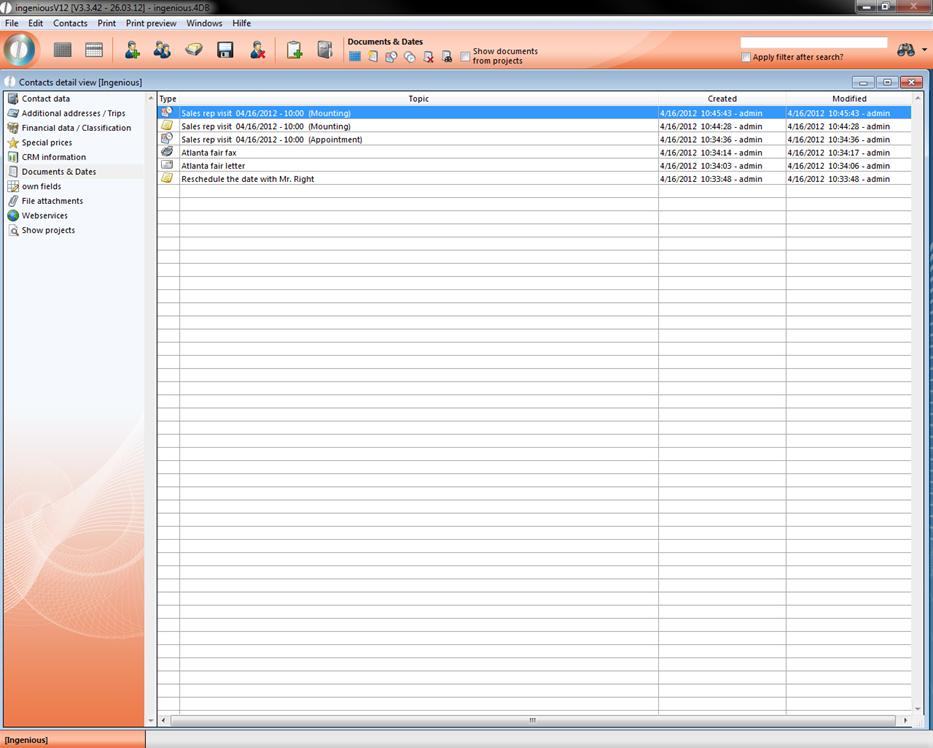
5. In the contact detail view, this date will be indicated with a field service icon  and can be opened and revised at any time.
Management of field service activities with Time Management
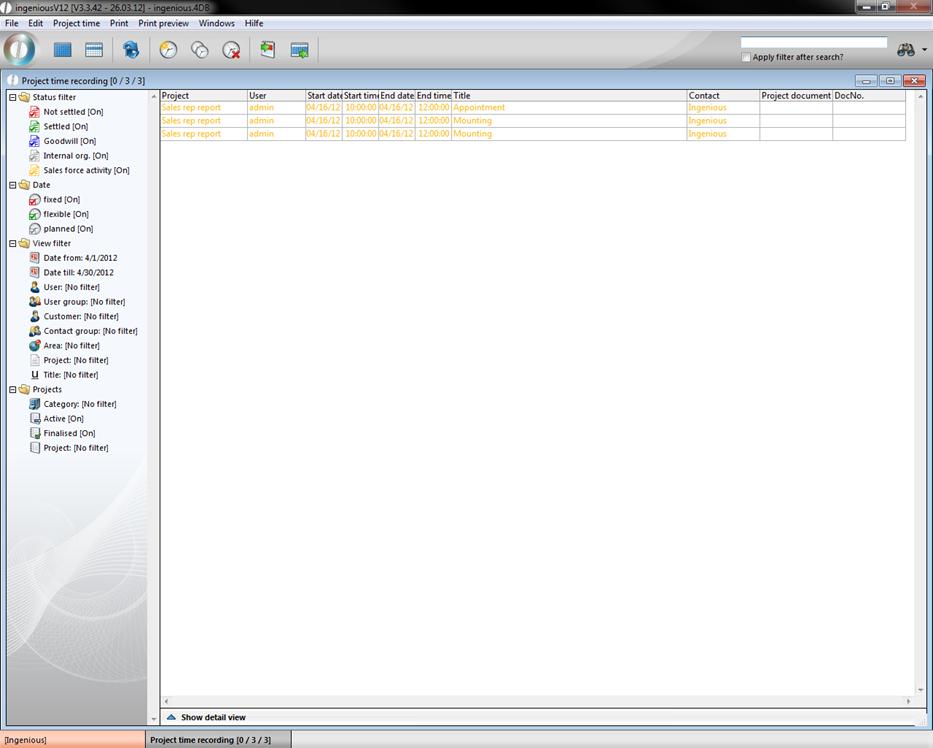
In the administrative tool, “Time Management” (= project time registration), all created field service activities can be managed and revised. Here a change in the provided AD dates is possible. All field service activities are indicated in yellow in the project time registration.
Printing of field service activities
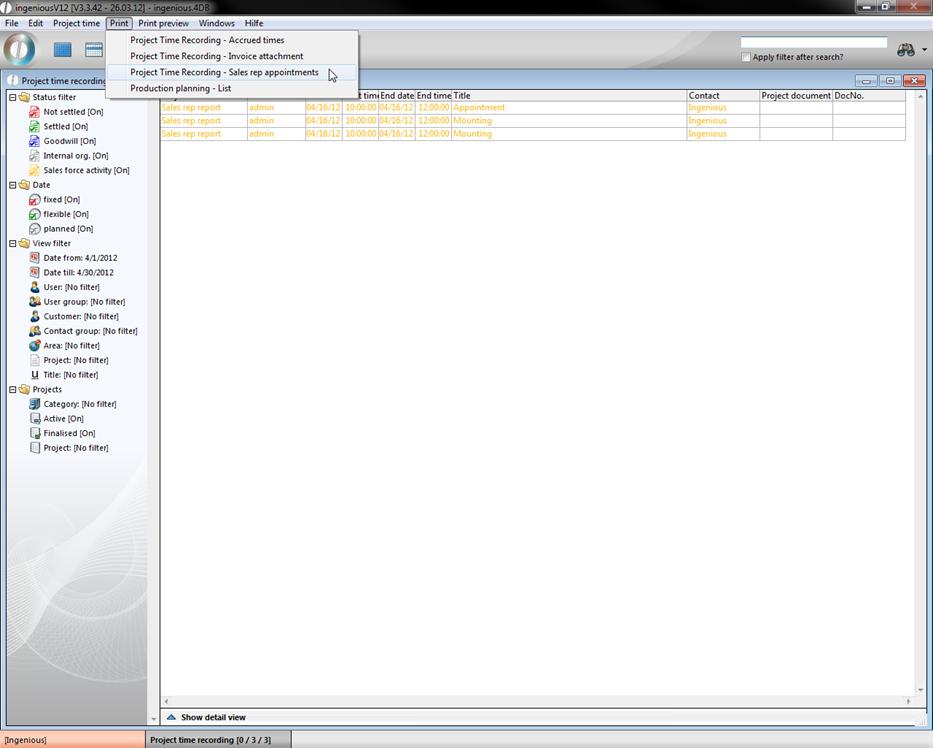
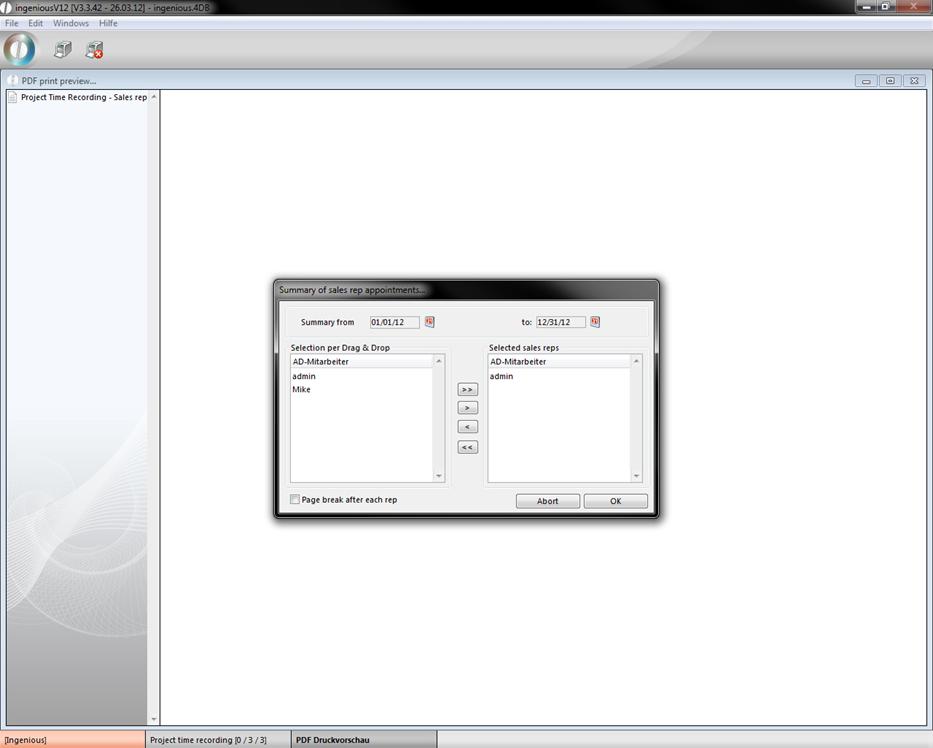
In the project time recording, field service dates for every employee can be printed out using the main menu, “Print” or using the option “Project time recording”. The date of the analysis period can be specified, and the selected employees for whom the field service dates are to be printed, can be pulled with the Drag & Drop function into the right field.